How-to1:27 minDeutsche Fassung
Weaver chat in detail
Weaver is your sparring partner for workshop planning. In this video: how you see what Weaver already knows, attach a client brief, answer by voice, ask for changes in the chat, undo them in one click and revise single blocks.
Real screen recording of the app, all data fictional. The narration is AI-generated.
Step by step
Weaver is your sparring partner for planning workshops. Here's how you work with Weaver and what Weaver does for you.
What Weaver already knows
At the top of the chat there are four points: outcome, blockers, dynamics and constraints. They show at a glance what Weaver already knows about your workshop.
Attach a client brief
Already have a brief from your client? Just attach it. Weaver reads it and ticks off what's in it. Outcome and constraints are covered right away.
Answer by voice
Whatever is still missing, Weaver asks about. You can answer by voice too: mic on, talk, send. Now all four points are covered.
Click “Generate agenda”
Then “Generate agenda”. Weaver builds the draft from everything you've discussed.
Ask for changes in the chat
Want changes? Just ask in the chat. Weaver applies them right away, shows you every step and marks what changed.
“Undo” in one click
Not quite right after all? One click on “Undo” and everything is back as it was. “Redo” brings it back.
Rework one block
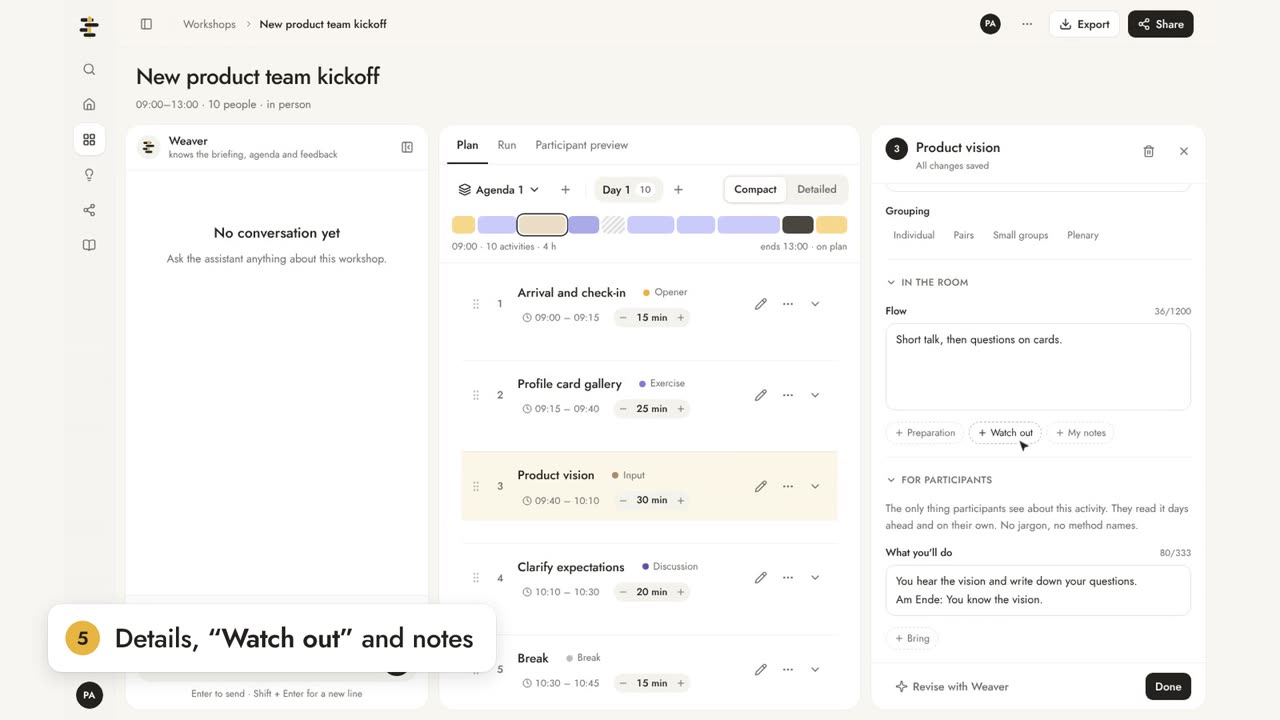
Want to work on one specific block? In the block's menu, choose “Revise with Weaver”, and Weaver knows exactly what you mean.
Rate answers
With thumbs up or down you tell us what worked. That helps us make Weaver better.
Up next
All videos
Planned from the goal.
7 days free · No credit card · Cancel anytime